
In the digital era, the web browser you choose as your primary one directly influences your online experience, including speed, security, and privacy. Many users also need a strong alternative to the mainstream. Thorium Browser is designed on a robust open-source platform based on Chromium to fulfil this need. It stands out because of its focus on aggressive compiler optimisations to achieve maximum performance, combined with a range of additional privacy controls that prioritise the user.
This comprehensive, step-by-step manual will guide you through the process of installing this powerful browser on your Windows 11 computer.
Understanding the Thorium Browser
Before discussing the installation process, it is important to note the basic design decisions that make Thorium an attractive option for power users and privacy advocates.
- Chromium Foundation/Compatibility: Thorium is a derivative of Chromium; Thorium and Google Chrome share the same Chromium core engine. This ensures highly compatible web access and instant access to the entire Chrome Web Store extension library. So you won’t lose access to necessary tools.
- Performance through deep optimization: Thorium’s philosophy is based on speed. The browser has been compiled using aggressive compiler options and recent instruction sets, as well as features such as Profile-Guided Optimization (PGO) and Link-Time Optimization (LTO). These changes enable Thorium to utilize your modern CPU hardware more effectively and often lead to noticeable improvements in benchmark.
- Greater Privacy and Open-Source Transparency: Thorium is an open-source browser, unlike many commercial browsers. This level of transparency allows the community to verify security claims and development practices. Additionally, Thorium has numerous patches and UI customizations to resolve bugs, improve usability, and provide primary protection. By default, it is also less connected to Google services than Chrome.
Prerequisites
To ensure a smooth installation process, please take a moment to verify that your Windows 11 PC meets the minimum requirements.
- Operating system: You need Windows 11. Although the browser might work on older versions, it will not work fully because it requires 64-bit architecture.
- Internet connection: You need a reliable, steady internet connection to download the installation package. This may be quite large due to the incorporation of all the necessary components.
- Permissions: To install the program properly, the installation wizard requires administrative privileges on the PC to correctly write to the Program Files directory of the system and generate any required registry keys.
Step 1: Downloading the Official Thorium Installer
The choice of the right installer, depending on your CP, U, is the most important performance step.
A. Determine Your Optimal CPU Build
You have to select the installer that corresponds to the uppermost set of instructions that your CPU supports.
| Build Name | Required CPU Support | Technical Detail | Performance Priority |
| AVX2 | Intel (Haswell/4th Gen or newer), AMD (Ryzen or newer) | Utilises 256-bit instruction registers for maximum parallel processing. | Highest (Best with the majority of modern users) |
| AVX | Intel (Sandy Bridge/2nd Gen or newer), AMD (Bulldozer/Jaguar or newer) | It uses instruction registers of 128 bits. | High |
| SSE4 / SSE3 | Older CPUs (Pre-2011) | Standard instruction sets. | Standard (For maximum compatibility) |
Selection Strategy: This is always recommended to start with the AVX2 installer. In case of failure by Thorium to launch, the CPU does not support it, and you have to uninstall and install the AVX version next.
B. Navigation and Download Procedure
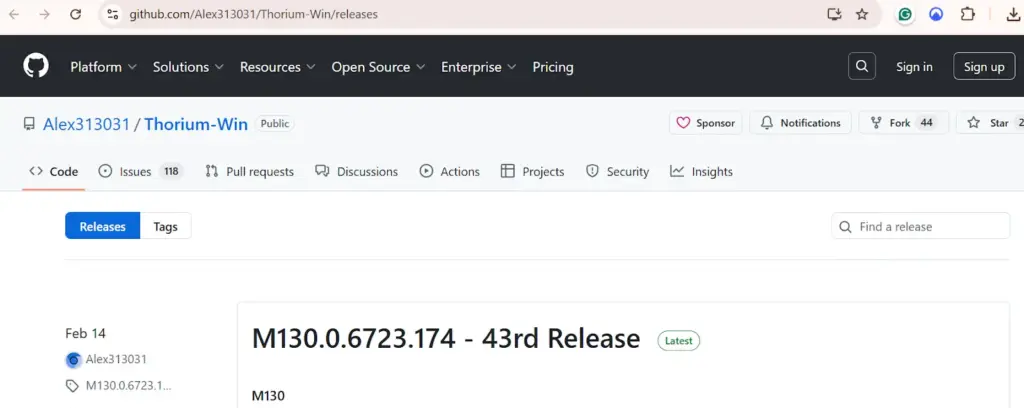
- Navigate to the Official Releases:
Access to the Thorium GitHub repository releases page, will require you to use your current browser.
- Access the Latest Release Assets:
Find the last release version and click on the list of expanded files under Assets.
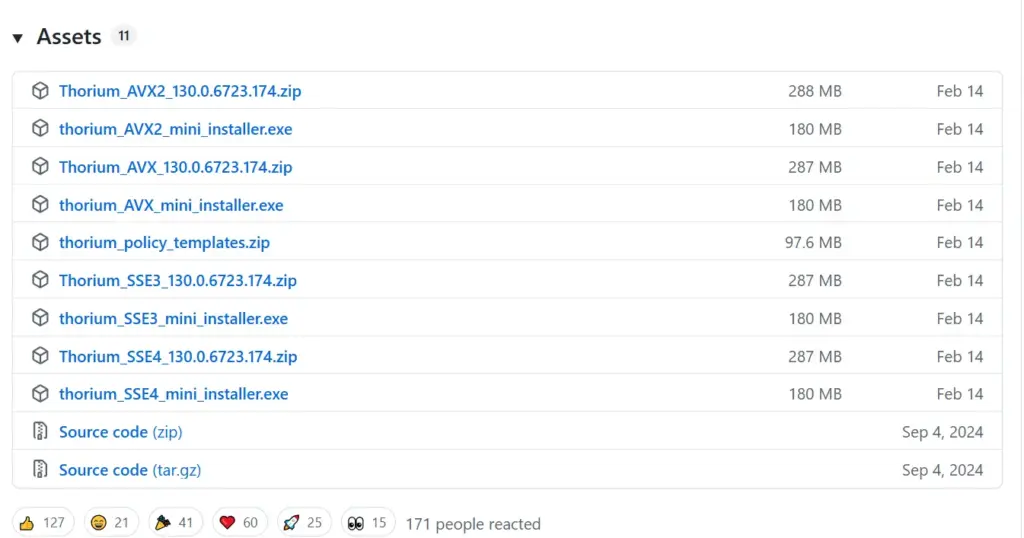
- Select the Mini Installer:
Find the .exe that matches your preferred CPU build (e.g. thorium_AVX2_mini_installer.exe). .exe is the simplest form of installation, and .zip is the advanced portable one.
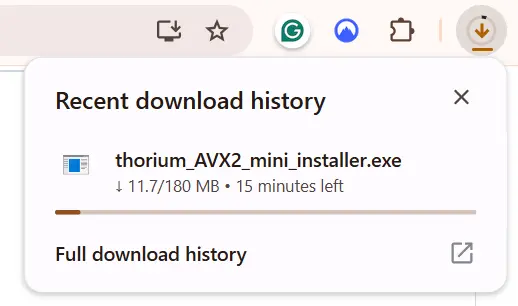
- Download and Save:
Click the link and save the file to your Downloads directory.
Step 2: Running the Installation Wizard
This installation is done using the lightweight Thorium mini-installer through a quick, background installation.
- Open File Explorer and find your downloaded.exe file.
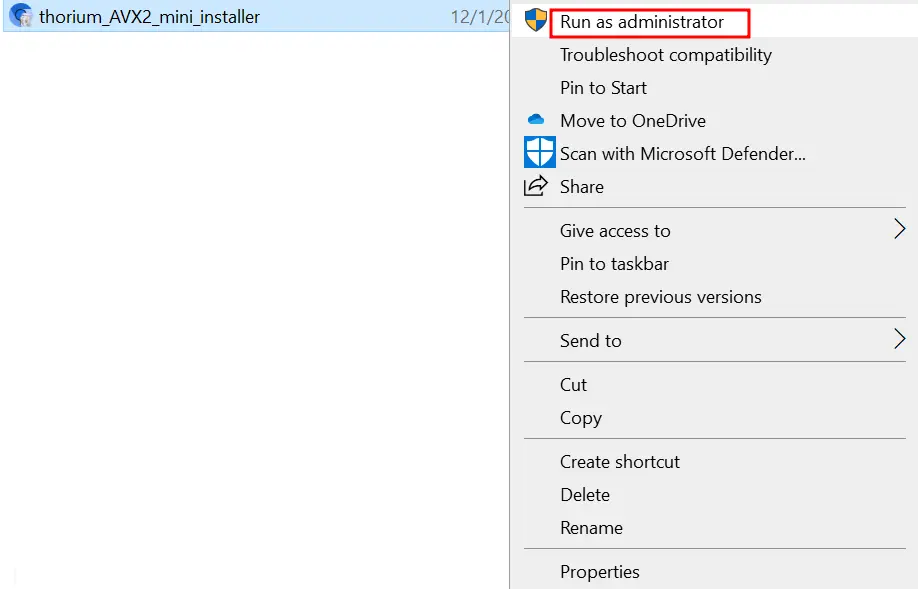
- Execute as Administrator (Mandatory):
- Right-click on the installer file.
- Select “Run as administrator” from the context menu. This operation promotes the privileges of the process, making sure that all files are properly written to the system directories.
- Authenticate the action by clicking on the User Account Control (UAC) prompt as Yes.
- Installation Process:
The Thorium mini-installer is a fast and silent process. It promptly takes care of the configuration, installs the required browser download. It also assigns initial user accounts, without the need to get the license.
Step 3: Finalising Setup and Launching Thorium
The browser is now installed and is ready to run.
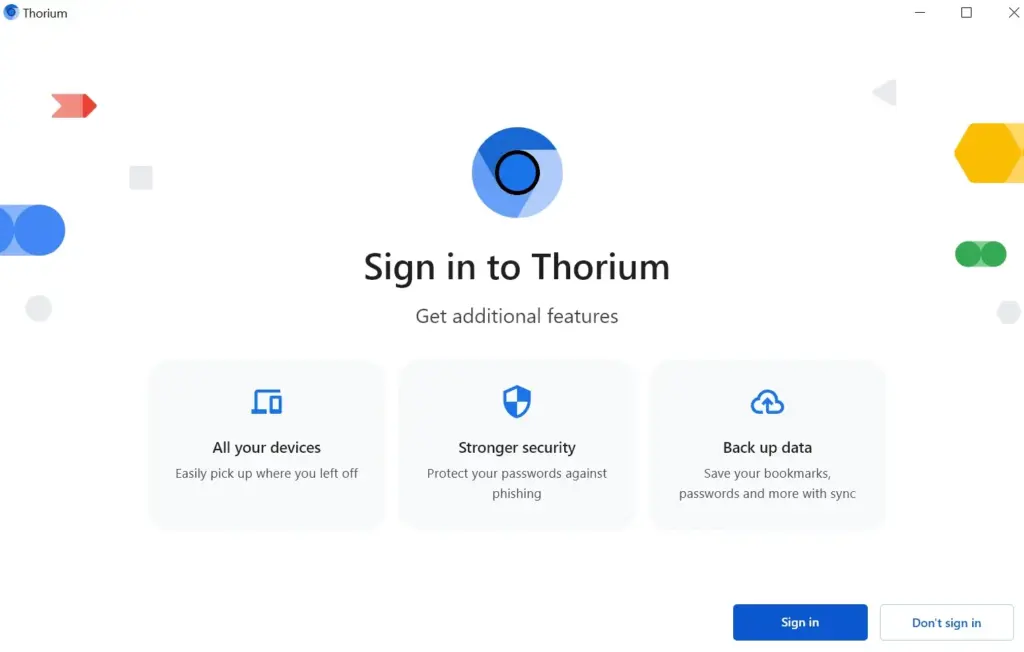
- First Launch:
The installer can be set to start the browser automatically when it is done. Otherwise, find the Desktop Shortcut or use the search menu of the Start and run Thorium.
- Pinning for Persistence:
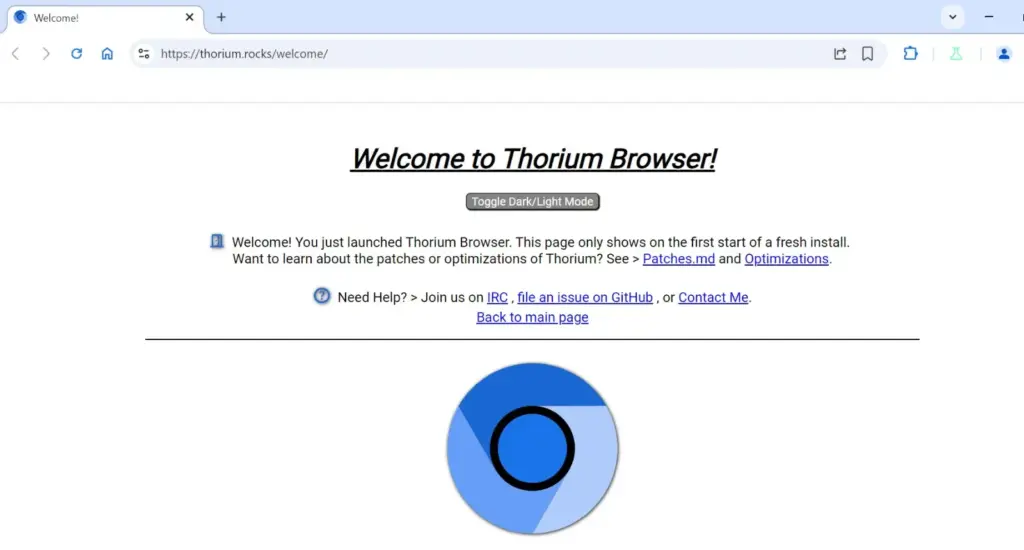
To have regular access, open Thorium, right-click on icon on the Windows bar and choose Pin to Taskbar. This will not allow the icon to be lost when the browser is closed. Now open and enjoy browsing via Thorium.
Troubleshooting Common Issues in Thorium Installation
The following are the key problems that you could face during the installation or usage of Thorium Browser. The causes of the problems, and the solutions to achieve a smooth process is listed below:
Installation Failures
- Main Issue: The Thorium installer will not run, aborts or give a message of error message when running.
- Cause and Detailed Solution:
- Cause: The installer does not have enough Windows privileges or is actively prevented by Windows Defender or a third-party antivirus package.
- Solution: Click on the executable with the right mouse button and going ahead to choose Run as administrator. In case the problem persists, simply shut off any third-party antivirus/firewall software in the course of installation, and re-enable it as soon as possible.
Browser Won’t Launch
- Main Issue: Thorium seems to install without any problems; however, the icon cannot be clicked and is unable to open the browser window.
- Cause and Detailed Solution:
- Cause: The download of installation files was corrupted, or a security setting that is going to be changed is denying the application executable.
- Solution: Should the issue persist, the only way to thoroughly remove Thorium is to use the Windows settings (Settings > Apps > Installed apps) to uninstall Thorium, be it by hand removing the remaining Thorium folders (use of check C:\Program Files) and then installing a new, administrator-run installer with the appropriate CPU-specific installer.
Slow or Streaking Media Playback
- Main Issue: Videos or complicated web graphics (such as 3D content) play slowly, stutter, or use up too many CPU resources.
- Cause and Detailed Solution:
- Cause: The hardware (Graphics) Acceleration is turned off using browser settings, and therefore, the CPU needs to perform tasks that would otherwise be done by the graphics card.
- Solution: Go to Settings and select System, and make sure that the graphics acceleration, when available, is On. In case the environment is already activated, it is possible that it is a system-wide problem; your system has to have its GPU drivers updated.
Website Access Errors
- Main Issue: Thorium has problems loading content or errors with certain websites that otherwise can be used.
- Cause and Detailed Solution:
- Cause: The default security and content-blocking options that Thorium has (e.g., tracking protection) are viewing the legal materials on that site as suspicious.
- Solution: Temporarily adjust your built-in tracking protection or content blocking settings within Privacy and Security to be less strict for the specific site, or whitelist the problematic website entirely to allow its scripts and resources to load.
Conclusion
Thorium Browser installation on Windows 11 is a great option because it is aimed at users who value raw speed and power in their web experience. The procedure that includes the safe download of the executable in the official GitHub repository and provides administrative rights to install it is simple and uncomplicated. The payoff is a highly optimised browser compiled with a high set of flags, such as AVX and PGO and is built to take advantage of the current CPU hardware to achieve significantly higher loading and rendering rates than some stock Chromium builds.
Thorium has other highly desirable features, such as open-source status and the ability to add privacy-enhancing patches without impairment. Since it is based on Chromium, the browser has flawless compatibility with all modern sites and still has access to the Chrome Web Store, which contains extensions and thus the user would have an easy time transitioning to it after previously using Chrome. After the installation, it is important to go the extra mile of checking hardware acceleration and privacy settings to realise the full potential of Thorium as a speedy, safe, and personalised everyday browser in a Windows 11 computer.