
If you’re looking to enhance your online privacy and security, LibreWolf is an excellent choice. It stands out as a highly secure and privacy-respecting version of the robust Mozilla Firefox core. It’s not just a reskinned browser; it comes meticulously preconfigured with aggressive privacy and security settings, eliminating the need to manually sift through hundreds of complex configuration options. Specifically, LibreWolf removes all Mozilla telemetry and unnecessary features, ensuring that it sends no data about your browsing habits back to the developers.
LibreWolf also deeply integrates privacy-focused search engines like DuckDuckGo and Searx. Furthermore, it ships with the essential ad blocker uBlock Origin preinstalled and the developers have optimized it for maximum effectiveness. This immediate readiness makes LibreWolf the perfect solution for users seeking a powerful, secure, and genuinely private browsing experience on their Windows 11 machine without the typical setup hassle. This guide will walk you through the easiest way to install LibreWolf, followed by tips for using it effectively in your daily routine.
LibreWolf Installation Guide: Using the Official Installer
This is the traditional and most flexible way to install the browser on a Windows computer.
1. Download the LibreWolf Installer
- Open your current web browser (like Edge, Chrome, Firefox, Floorp, or Thorium) and navigate to the official LibreWolf installation page for Windows: https://librewolf.net/installation/windows/
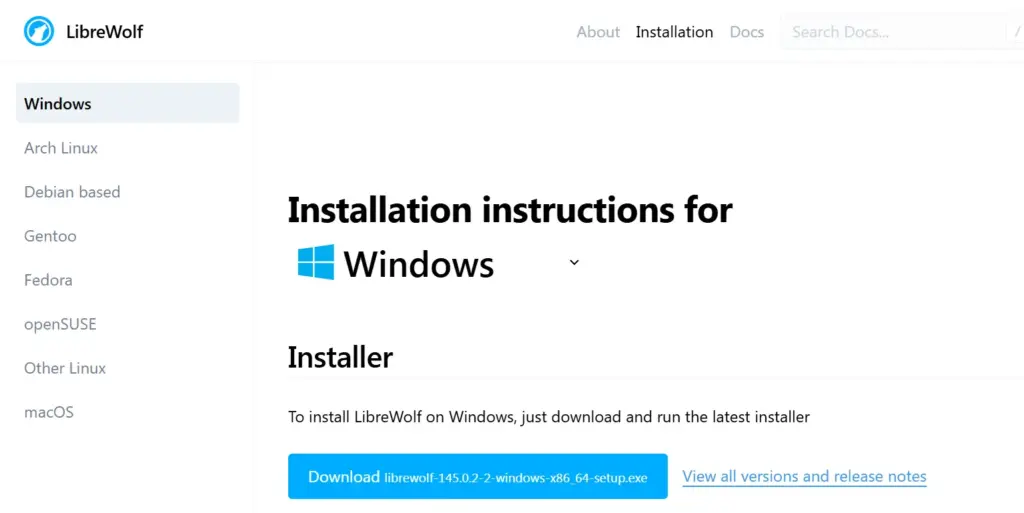
- Locate the Installer section and click the link to download the latest executable file, which is usually named librewolf-*-windows-x86_64-setupexe.
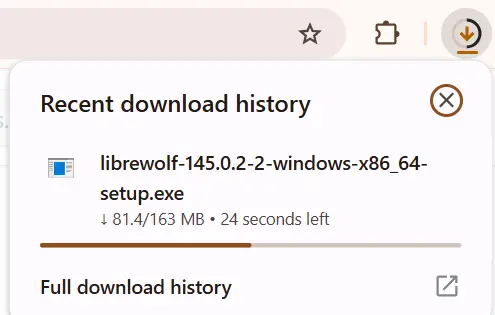
- Save the installer file to your Downloads folder.
2. Run the Setup File
- Once the download is complete, double-click the downloaded .exe file to start the installation.
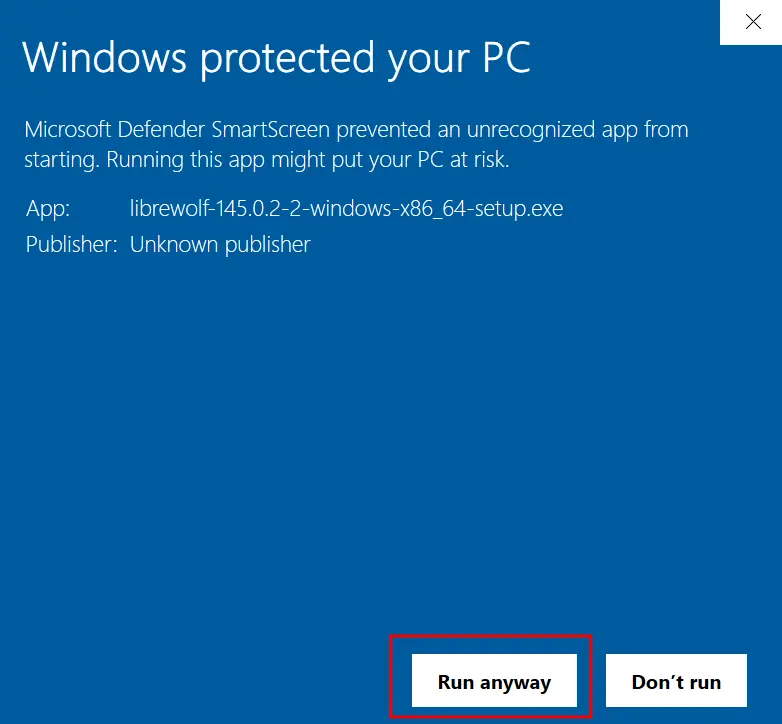
- Security Warning: Windows SmartScreen may display a warning about an “unrecognized app.” This is common for open-source software. Click “More info” and then select “Run anyway” to proceed.
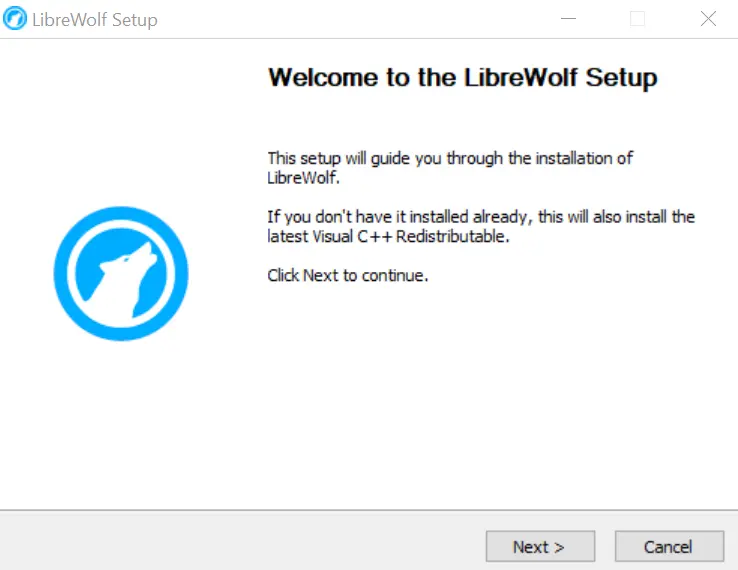
- The LibreWolf Setup Wizard will open. Now, click “Next” to continue.
3. Complete the LibreWolf Installation
- Choose your installation folder.
- On the components screen, ensure the LibreWolf WinUpdater is selected. This utility is highly recommended as it helps simplify the critical process of keeping your browser updated.
- Click “Install” and wait for the process to complete.
- Once finished, click “Finish.” You can choose to launch LibreWolf immediately.
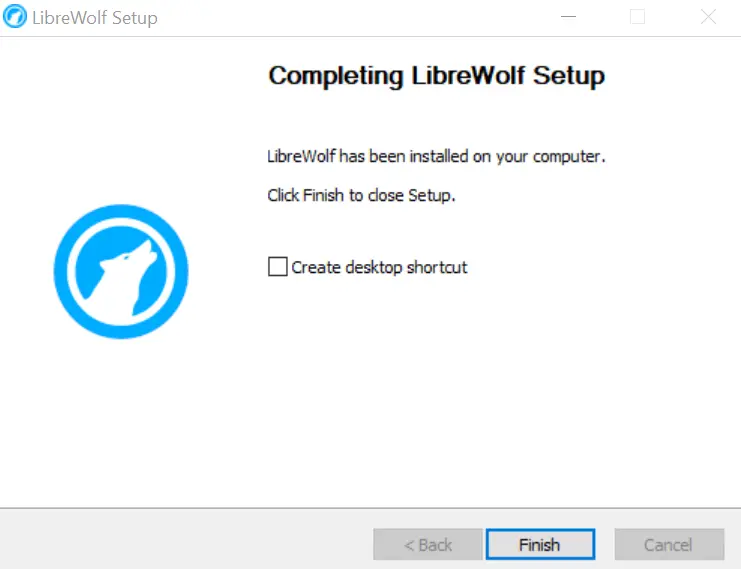
Congratulations, you have now installed LibreWolf! Now, here are the essential tips you need to know to make the most of your new private browser.
Pro Tips for Your New Browser
LibreWolf locks down by default, which is great for privacy but can sometimes affect usability. Therefore, use these tips to customize your experience without compromising security.
1. How to Stay Logged In to Trusted Websites
LibreWolf is configured to delete all cookies and site data when the browser closes. This is a major privacy feature, but it means you’ll be logged out of every site after every session.
- The Fix (Recommended): To stay logged in to sites like Gmail or banking portals, use the exception list:
- Go to the website (e.g., mail.google.com).
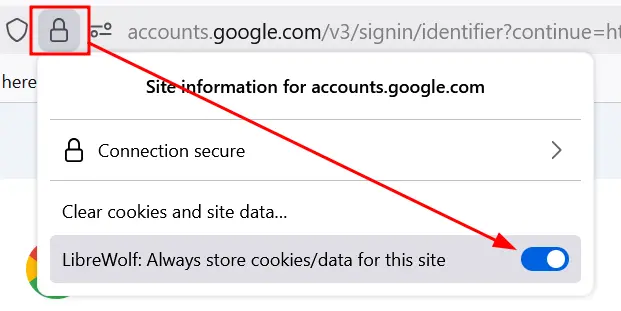
- Click the padlock icon to the left of the address bar.
- A quick toggle will appear that says LibreWolf: Always store cookies/data for this site.
- Toggle this switch ON for any site you want to remain logged into permanently.
2. Never Forget to Update
Unlike standard Firefox, LibreWolf does not automatically update itself. Therefore, you are responsible for applying security patches.
- Check for Updates: If you installed the WinUpdater, an icon will appear in your system tray (the hidden icons near the clock). You can right-click this to check for new versions.
- Manual Update: The surest way to update is to periodically return to the official LibreWolf Windows installation page and re-run the latest .exe installer. This will upgrade your existing installation and preserve your settings.
3. Use a Dedicated Password Manager
LibreWolf disables its built-in password manager by default, as browser-based managers are often seen as less secure than dedicated third-party solutions.
- Tip: Install a secure, cross-platform extension like Bitwarden or KeePassXC from the Firefox Add-ons store. This keeps your passwords encrypted and separate from the browser.
4. Enable Dark Mode with an Extension
To prevent fingerprinting, LibreWolf disables the built-in operating system color preference. This means many websites may display their bright white “light mode.”
- Tip: If you prefer a dark theme, install the popular extension Dark Reader from the Firefox Add-ons store. It injects custom CSS to give virtually every website a comfortable, persistent dark mode.
Conclusion
Now that you have successfully installed LibreWolf and implemented these essential configuration tips, you are equipped with one of the most powerful privacy and security tools available for Windows 11. You have gone beyond basic security measures and taken a significant, proactive step toward controlling your digital footprint, blocking pervasive surveillance, and safeguarding your online data. Nevertheless, the internet should be a private space, and LibreWolf helps make that a reality.
Enjoy clean, fast, and fundamentally secure browsing with true privacy. Start exploring the web the way it was meant to be explored: privately and on your own terms.