ZEZARU

How to Install Kodi 21.2 on Android & Google TV Devices

Kodi remains one of the top apps for watching free content on these devices. With the right add-ons and builds, users can access tons of movies, TV series, live channels, and more.

Therefore, this tutorial will show you how to install Kodi on Android TV/Google TV and Stock Android devices. Android TV/Google TV devices include the NVIDIA Shield, Chromecast with Google TV, Google TV Streamer, Onn 4K Box, and similar systems. Stock Android devices include tablets, phones, and generic streaming boxes that don’t use the Android TV interface.

Since not all Android TV or Google TV versions include Kodi in the Play Store, the steps below show how to sideload the app using a tool called Downloader. Below, you’ll find multiple screenshot guides to help you install it on your Android TV/Google TV device.

How to Install Kodi on Android TV/Google TV

Below are the best ways to sideload the APK on your Android TV:

1. Download Kodi Via SendToTvQuick
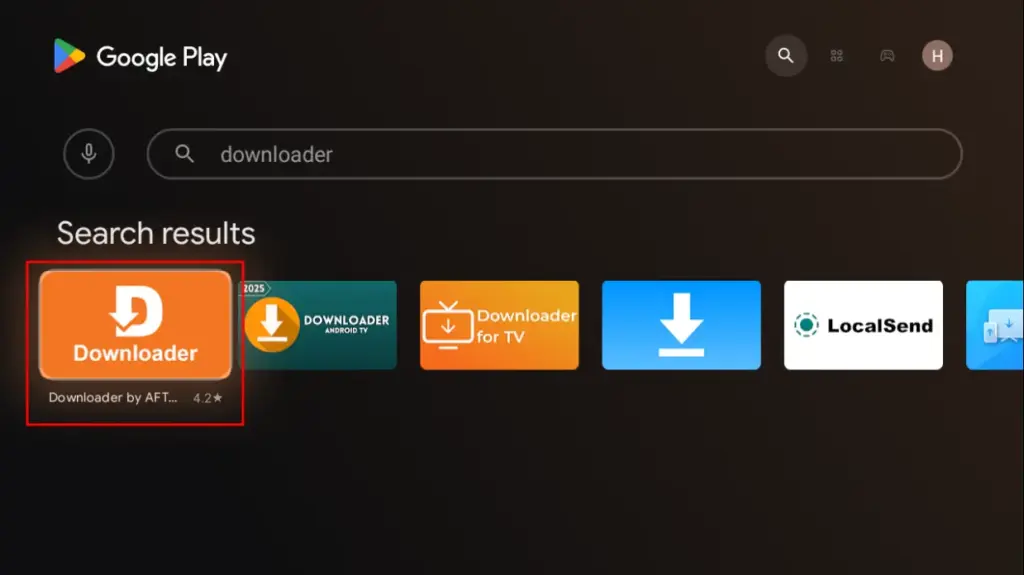
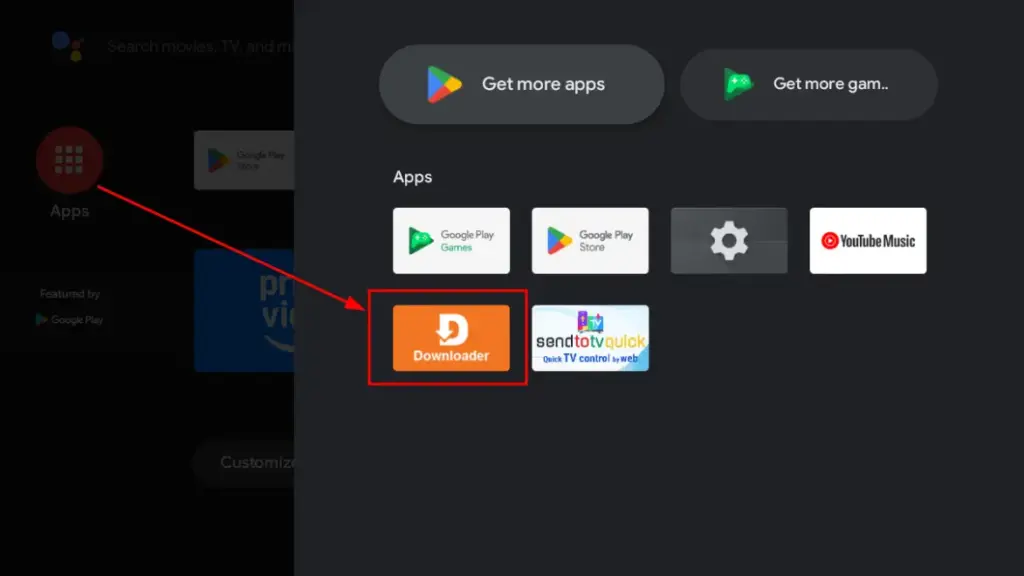
Install the Downloader app from the Google Play Store, then turn on Apps from Unknown Sources in your streaming device’s settings.
Launch the downloader
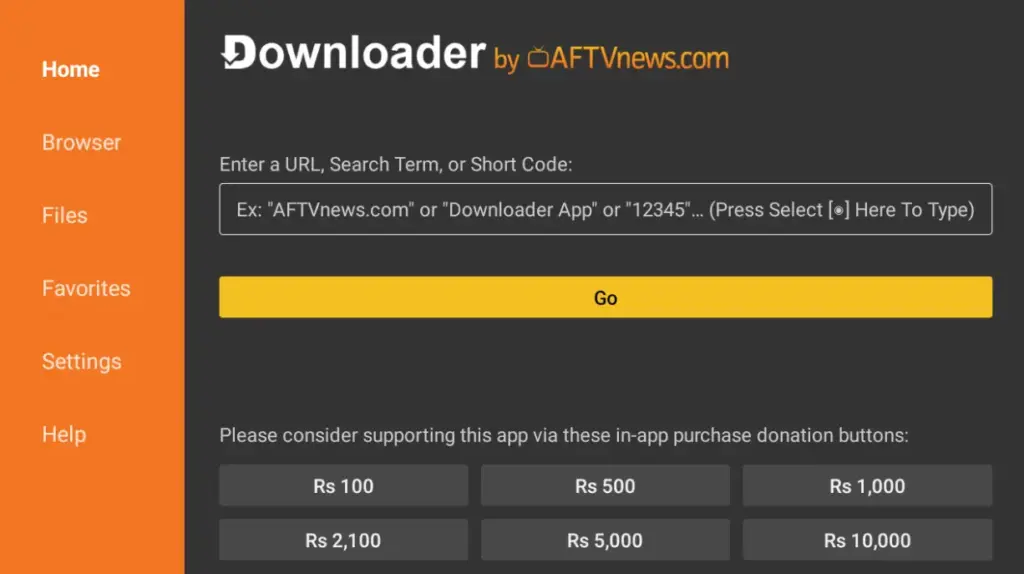
Downloader to install Kodi
After launching Downloader, click the search box.
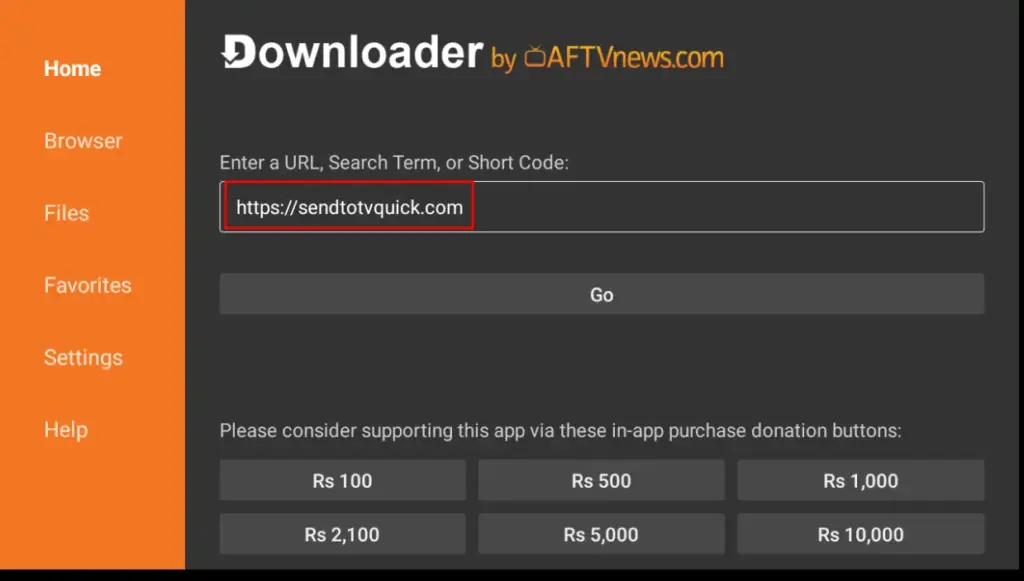
Enter the following URL: https://sendtotvquick.com. Then, click Enter.
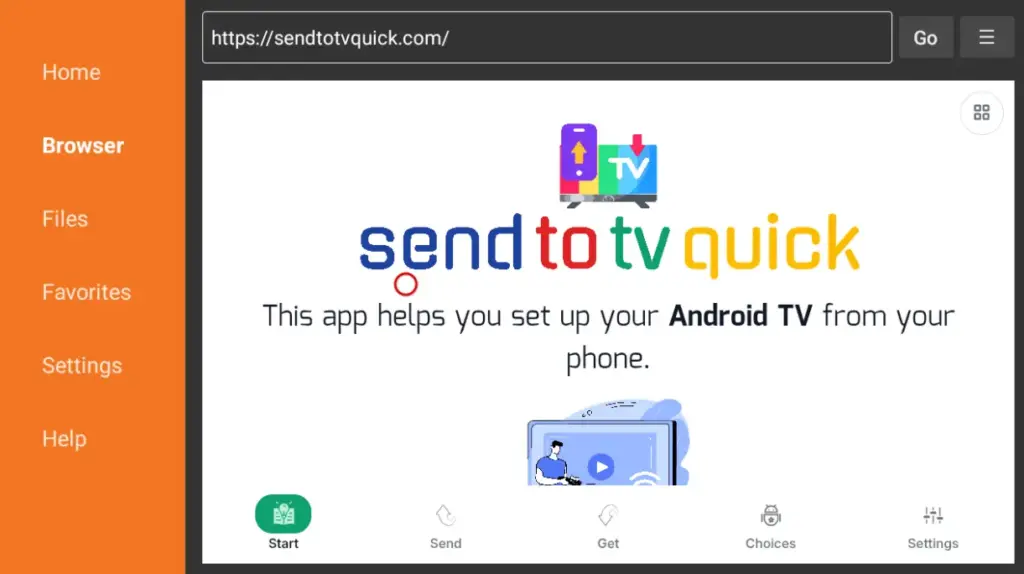
Kodi installation via STV
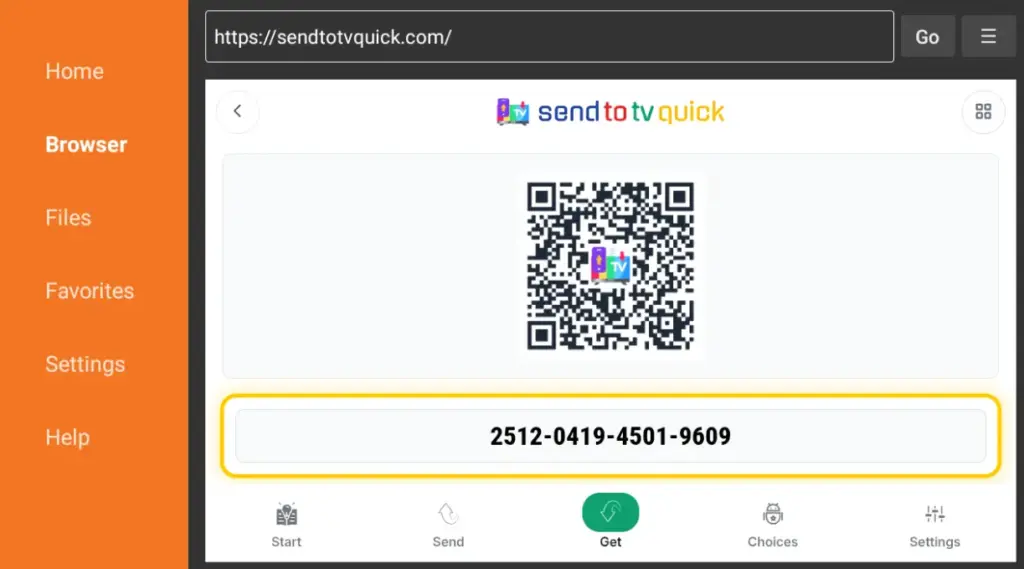
This brings you to the SendToTV Quick home screen.
Go to “Get” and scan the QR code on your mobile device to send the Kodi APK to your Android TV. You can also install the APK from the official website: https://apkpure.com/kodi-app/org.xbmc.kodi.
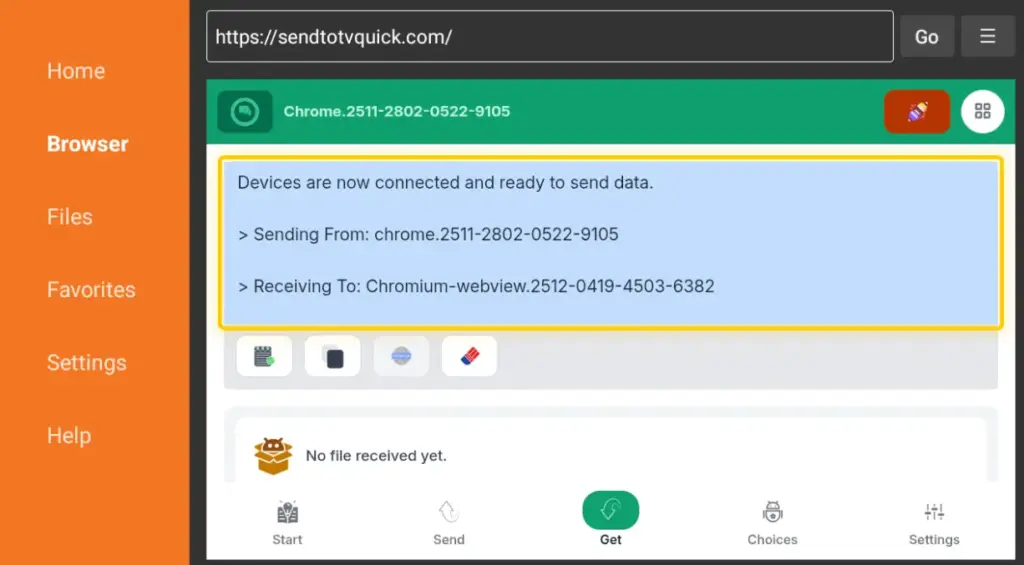
After connecting your mobile device to your Android TV, you can upload the APK.
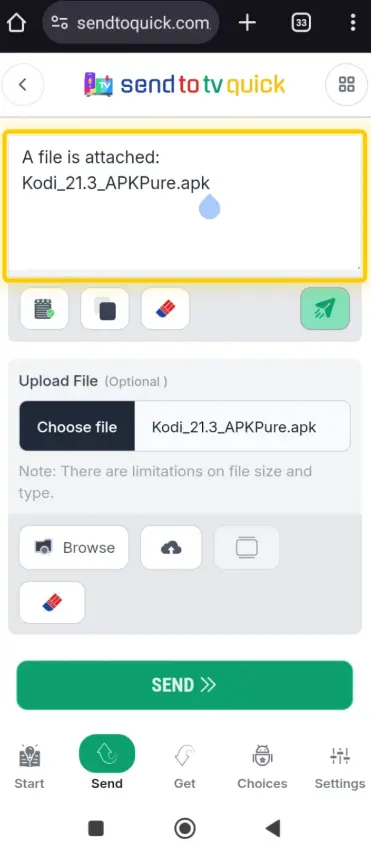
Kodi APK upload
After uploading the APK, click the “Send” button.
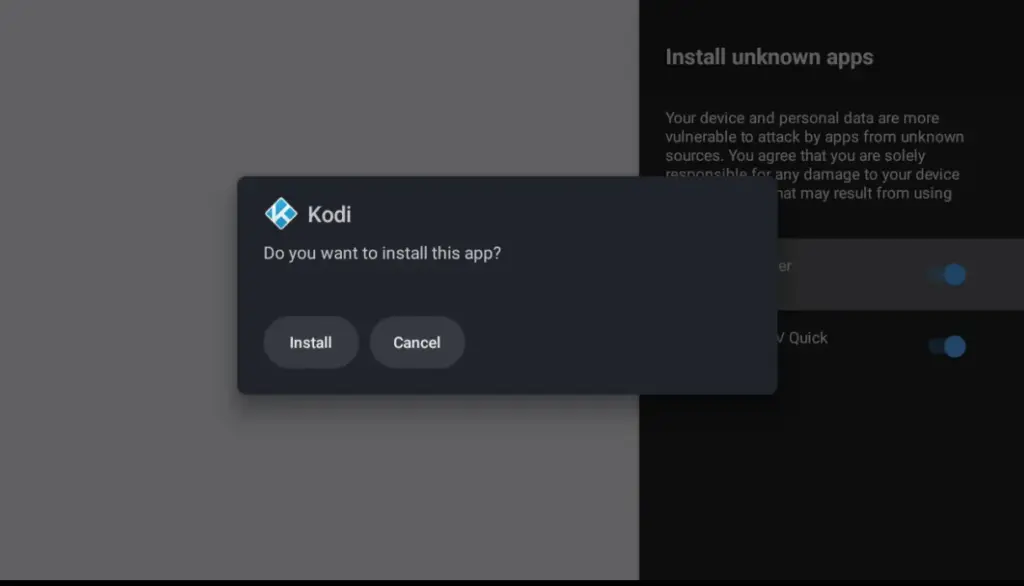
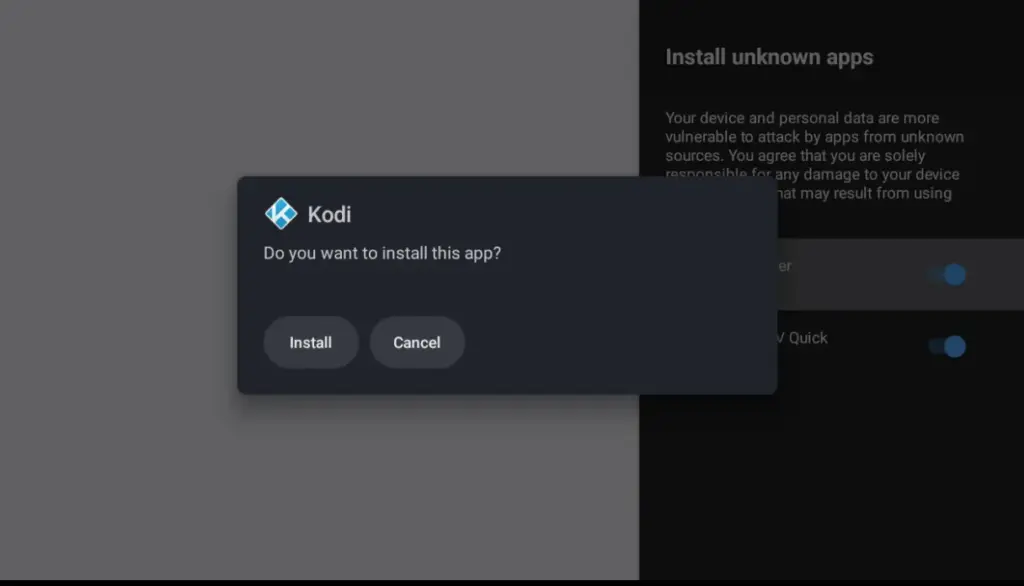
Once the APK is received on your Android TV, click Install.
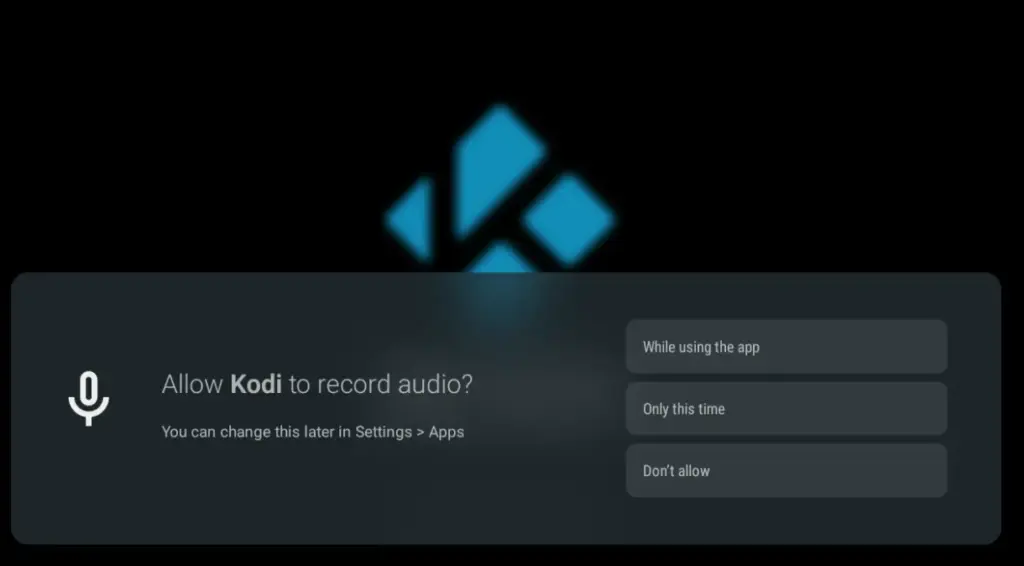
Open the installed app and grant the necessary permissions.
App is now installed and ready to use.

2. Download Kodi Via Official Website

First, install the Downloader app from the Google Play Store. Then, turn on Apps from Unknown Sources in your streaming device’s settings. Type https://apkpure.com/kodi-app/org.xbmc.kodi into your Search bar. Press Enter.
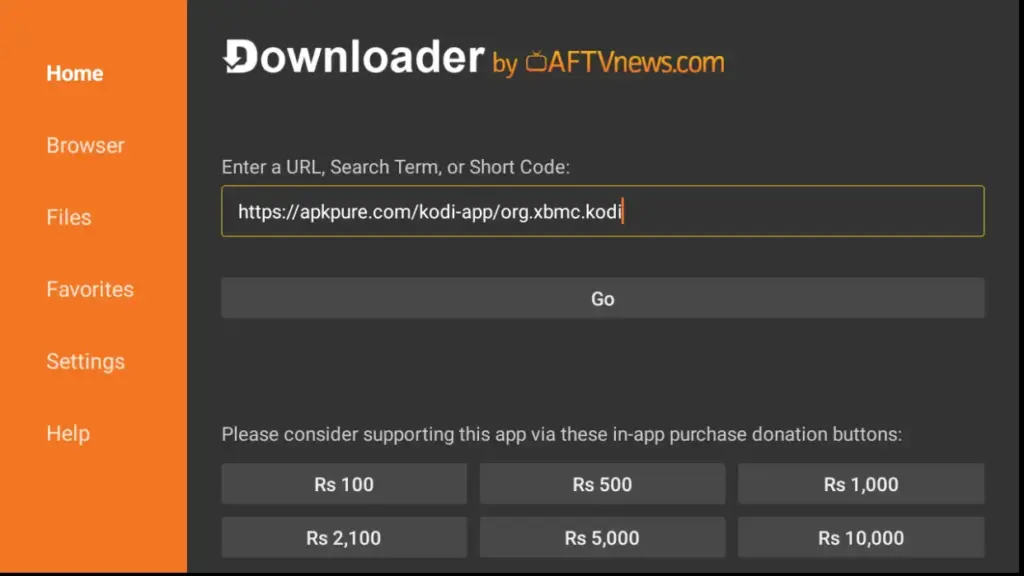
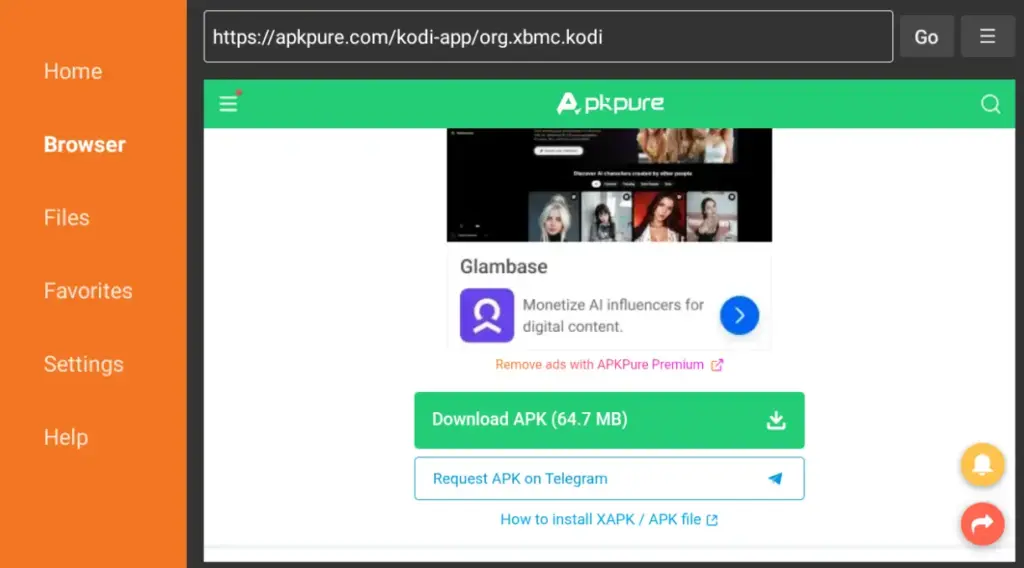
Kodi APK url
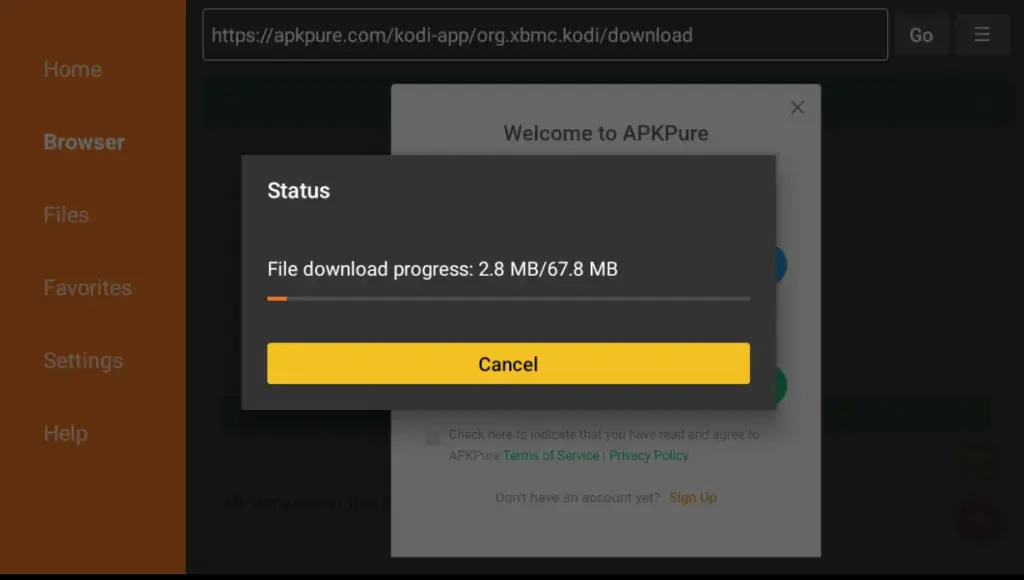
Scroll down and click “Download APK” button.
Kodi official website
Once the APK download is complete, click Continue.
Click Install, then grant the necessary permissions, and it will be ready to use.

3. Download Via Google Play Store

We recommend using the steps above to download the latest version. However, this application is also available on the Google Play Store.
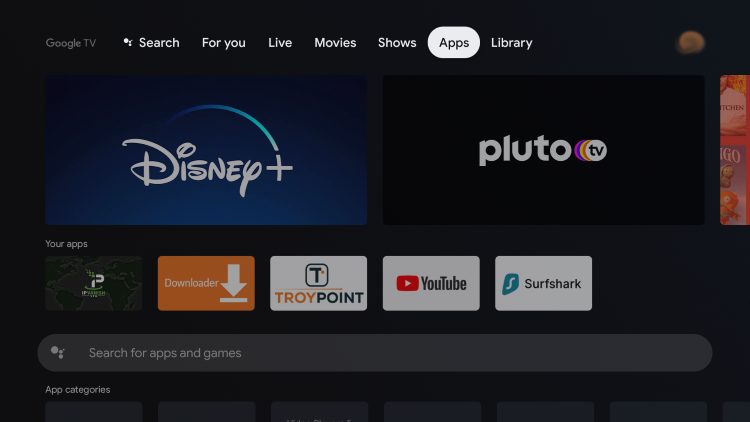
From the main menu click Apps.
how to install kodi on android google play store
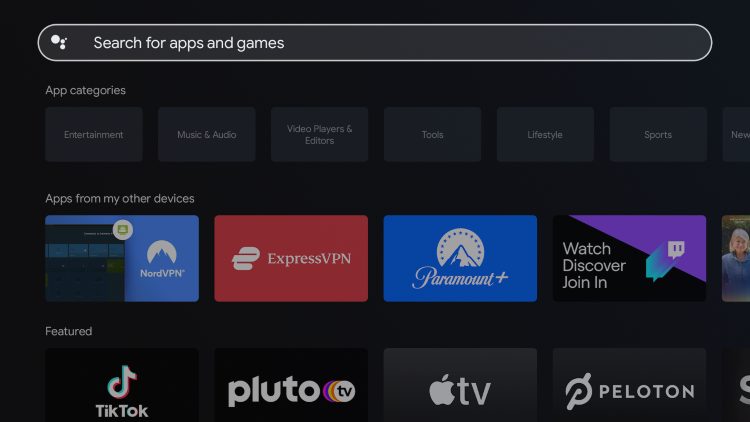
Scroll down and click on the search box.
Scroll down and click the search box.
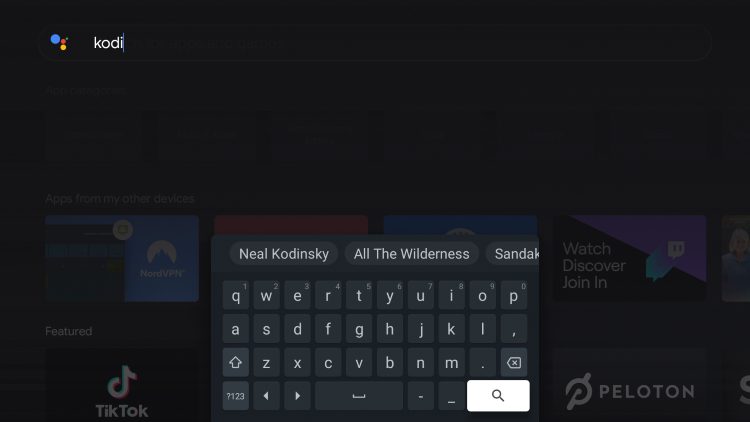
Type in “Kodi” and click the search icon.
Type in "kodi" and click the search icon.
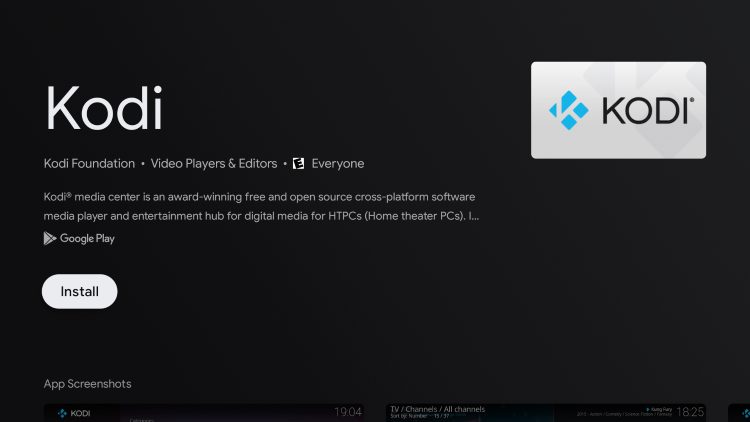
Click Install.
Click Install kodi on android tv google play
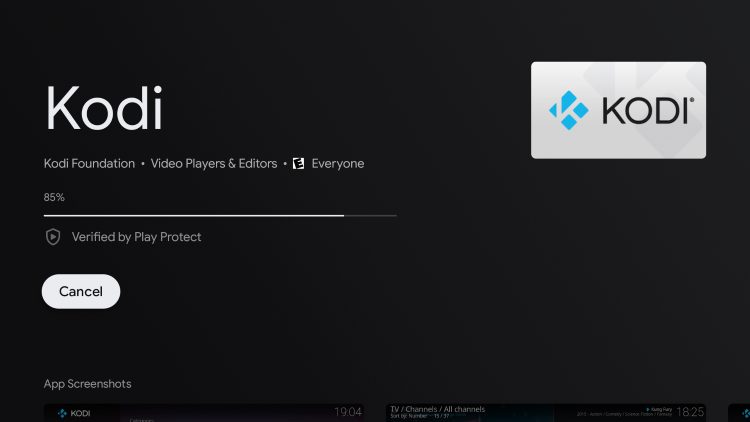
Wait one or two minutes to install.
Wait a minute or two for Kodi to download.
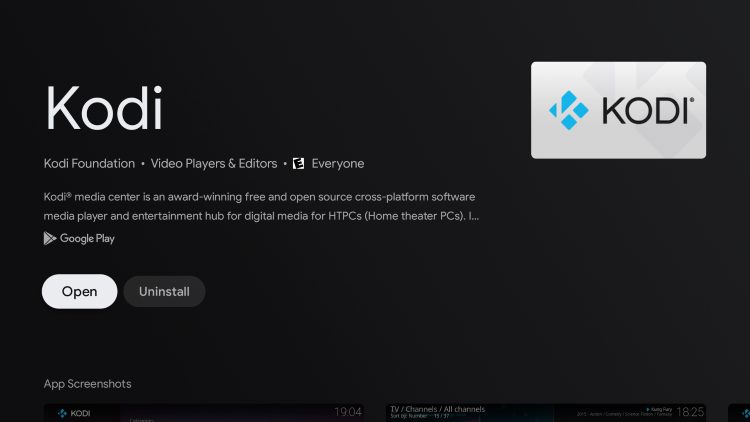
After installation completes, click Open.
Once Kodi finishes installing click Open.
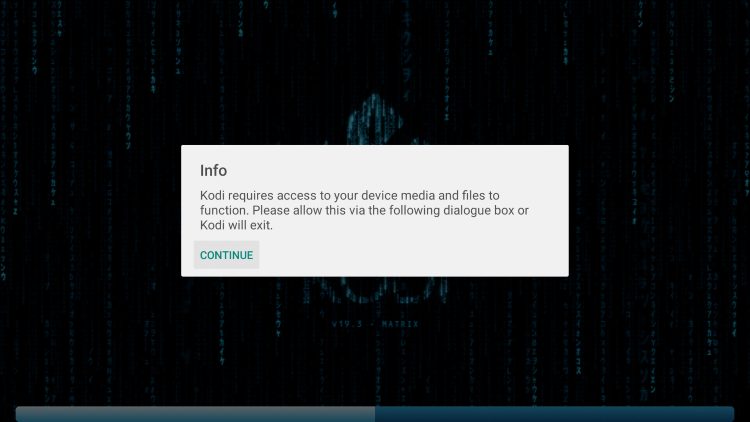
Click continue.
Click continue.
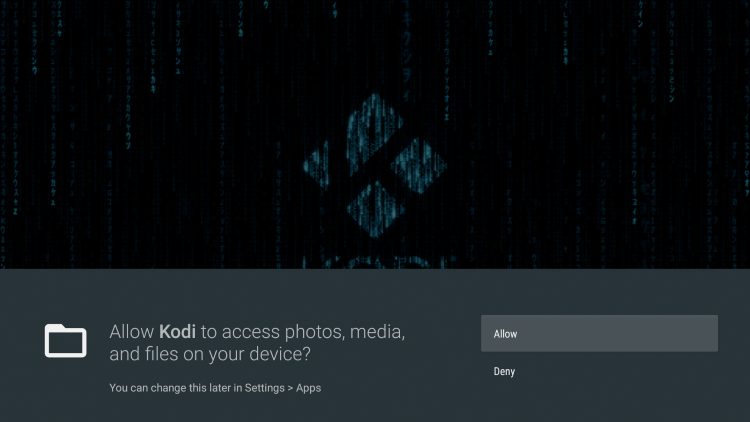
Click Allow.
Click Allow.
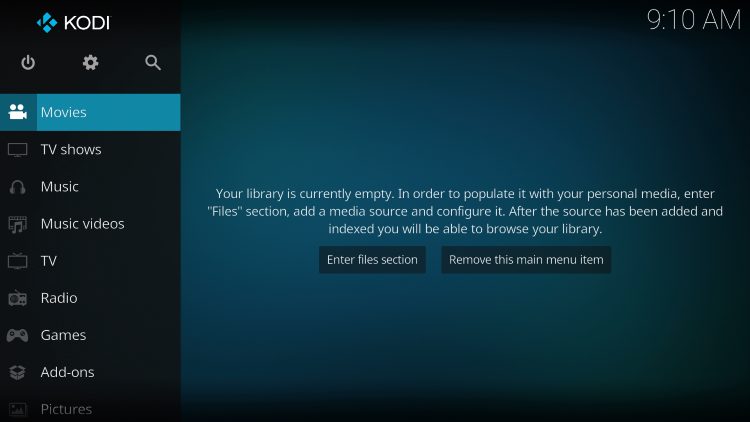
Congratulations! You have successfully installed Kodi on your Android TV device using the Google Play Store.
You have successfully installed Kodi on your Android TV device using the Google Play Store!

Final Conclusions

One of the easiest ways to cut the cord and take control of your streaming setup is by installing Kodi on your Android TV/Google TV device.

It has been a favorite among cord-cutters for over a decade because it improves with each update. Moreover, its flexibility and wide device support make it the go-to option for anyone looking to ditch traditional TV.


0 0 votes
Article Rating
Subscribe
Notify of
guest
0 Comments
Inline Feedbacks
View all comments
0
Would love your thoughts, please comment.x
()
x