
Floorp is quickly gaining traction as a premier open-source web browser, standing out in a crowded field dominated by Chrome and Edge. Built upon the robust, privacy-respecting core of Mozilla Firefox, Floorp inherits its powerful rendering engine and compatibility with the vast Firefox add-on ecosystem.
However, Floorp builds on this foundation to offer users deep customization, enhanced productivity features, and robust privacy controls from the outset. Installing this versatile browser on your Windows 11 PC is a simple process that enables you to swiftly and efficiently take control of your browsing environment.
1. Accessing the Official Floorp Website and Downloading the Installer
The first and most crucial step in installing any new software is to ensure that you are downloading authentic files directly from the source, in order to prevent security risks.
- Open your preferred web browser (Google, Firefox, Thorium browser etc.) and navigate to the official Floorp download page: Floorp Download Page.
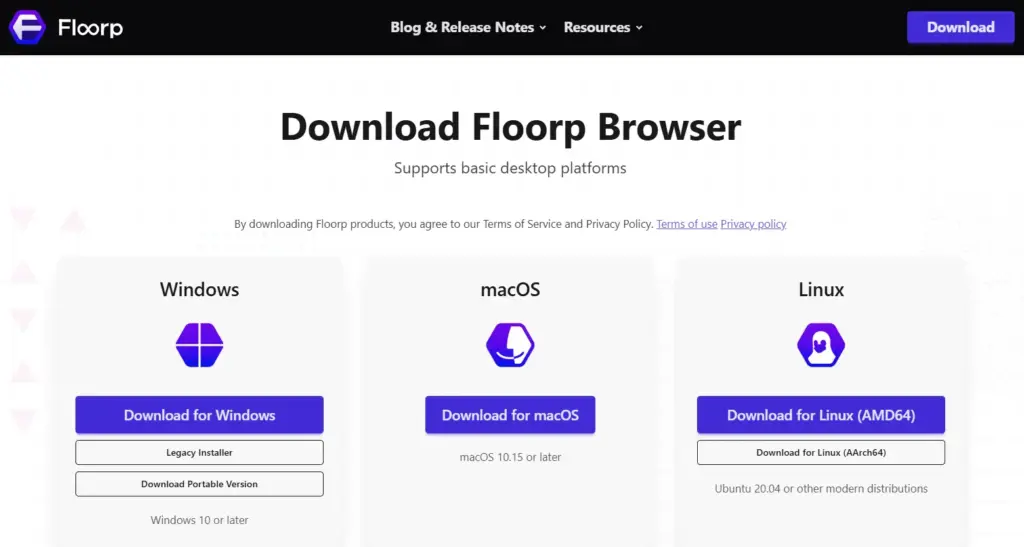
- Locate the Windows download link. On this page, click on the “Download for Windows” option to get the standard executable file (e.g., floorp-stub.installer.exe).
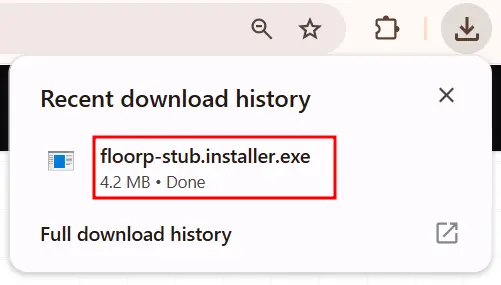
- Note: The standard installer is recommended because it handles all necessary system integration.
- Wait for the file to finish downloading to your Downloads folder.
This ensures that you have the correct, up-to-date installation file directly from the developers and sets a secure foundation for the rest of the process.
2. Initiating the Floorp Setup and Granting Permissions
Once the secure file has finished downloading, run the executable and grant the necessary system permissions for installation.
- Afterwards, navigate to the Downloads folder and locate the downloaded Floorp installer file.
- Double-click the installer file to launch the setup program.
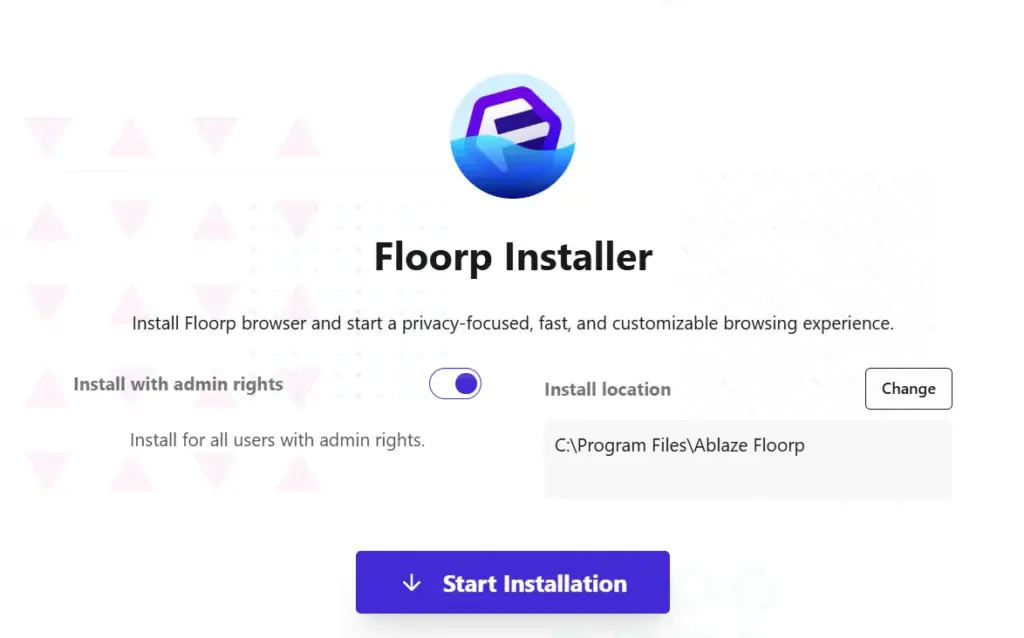
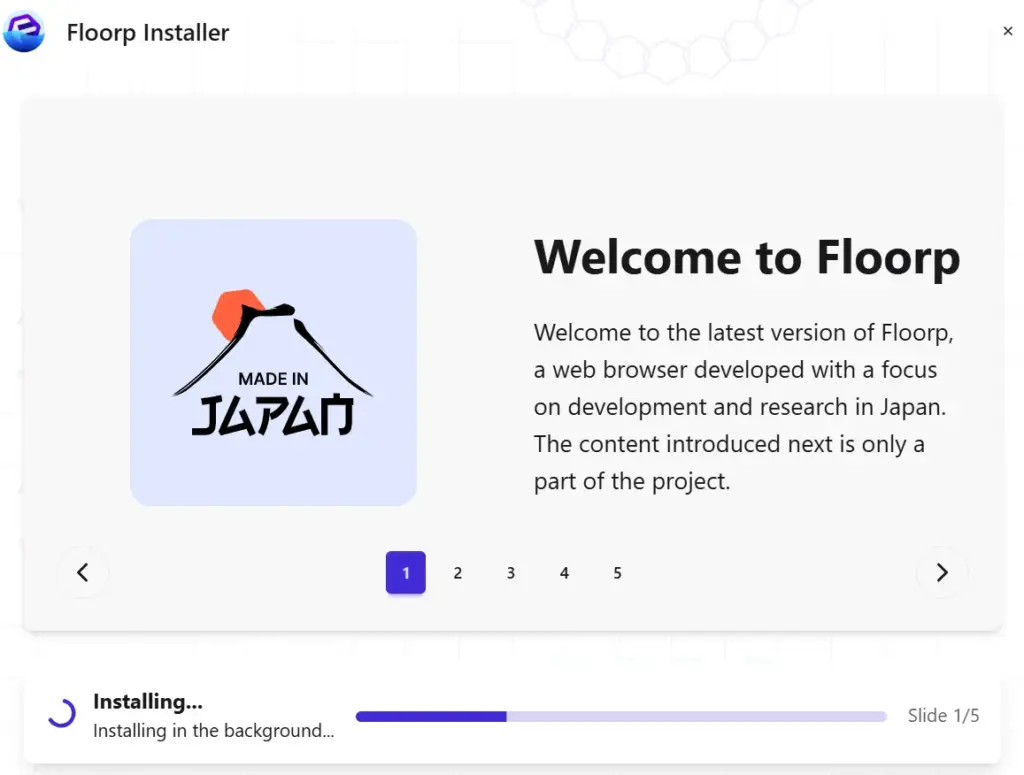
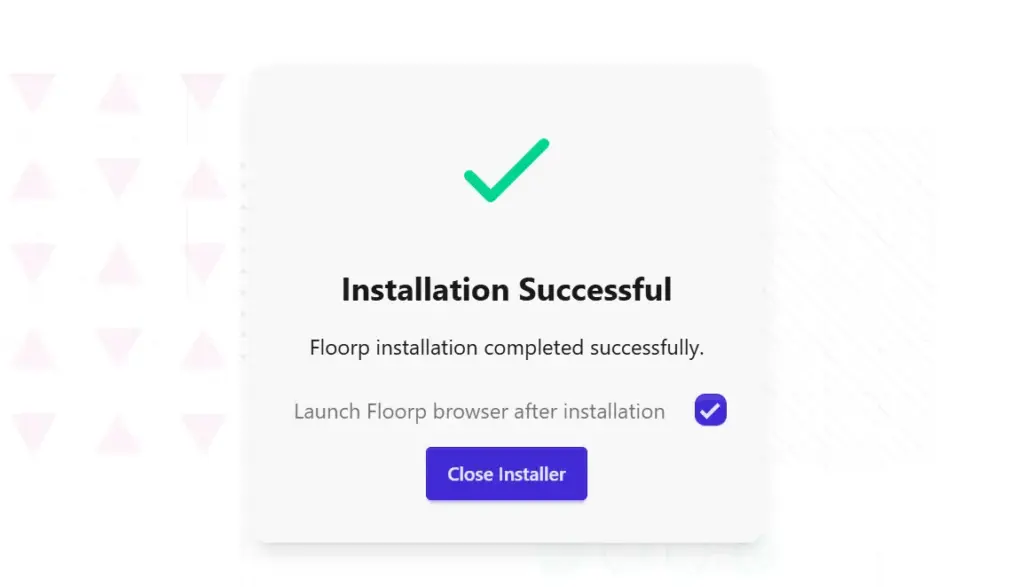
- Wait for the installation to complete, and then proceed with the next step.
- Approve the User Account Control (UAC) prompt. Windows 11 will prompt you to allow the application to make changes to your device. Click “Yes” to grant the installer the necessary administrative privileges to proceed.
The UAC prompt is an essential Windows security feature. Approving the prompt confirms your intent to install the software and allows the program to access the necessary system directories to place its files.
3. First Launch and Initial Configuration
The first time you launch Floorp, its features truly come to life. Moreover, you can instantly shape the browser’s appearance and import existing data.
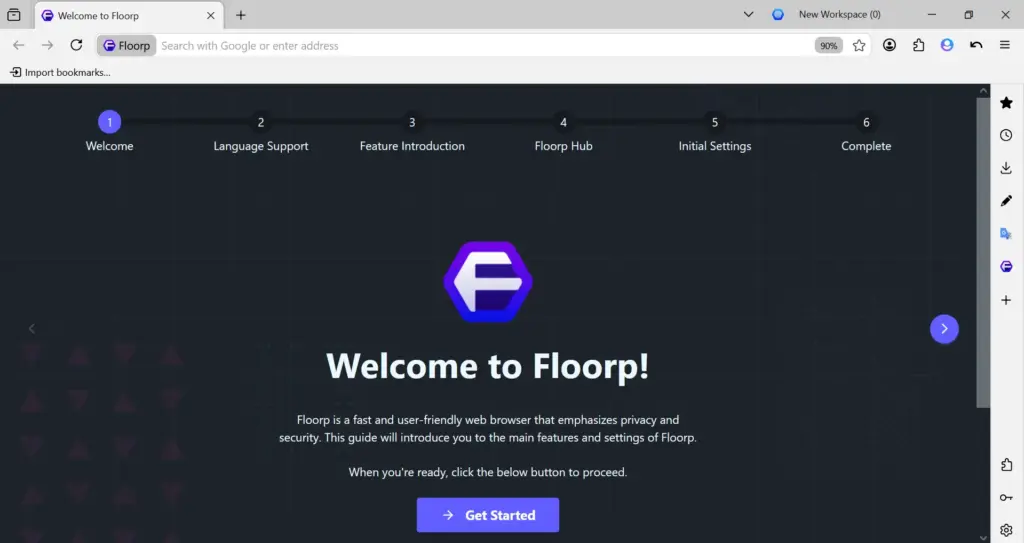
The wizard will walk you through several crucial steps, starting with language support and ending with the core browser appearance.
A. Language Support
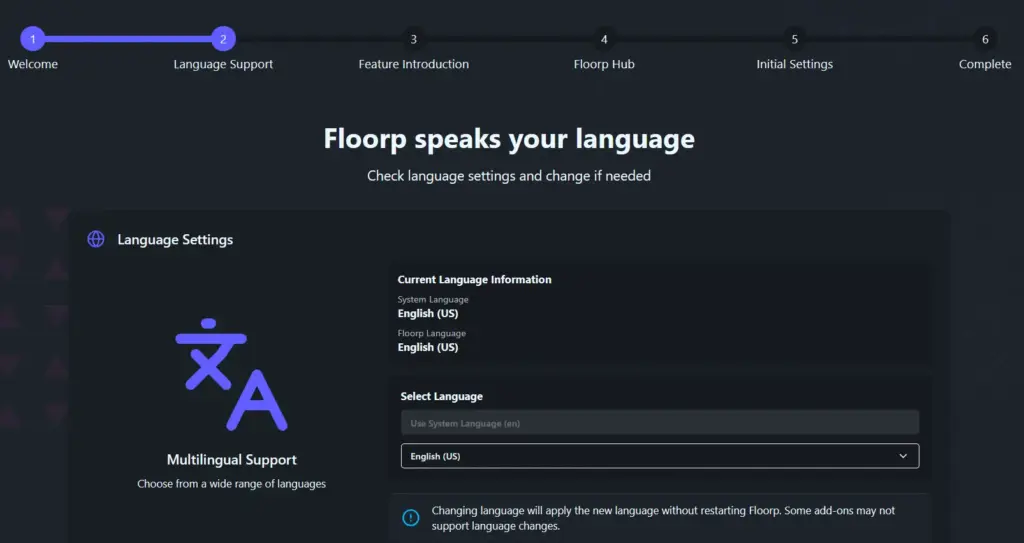
This screen, titled “Floorp speaks your language,” verifies your display language.
- Check Language Settings: Review the “Current Language Information.” If the language matches your desired language (usually the same as the system language, e.g., English (US)), you can proceed.
- Change Language (If Necessary): If you need a different language, click the Select Language dropdown menu. Select your desired language. Floorp will apply the change instantly without requiring a restart.
- Action: Click the “Next” button.
B. Feature Introduction
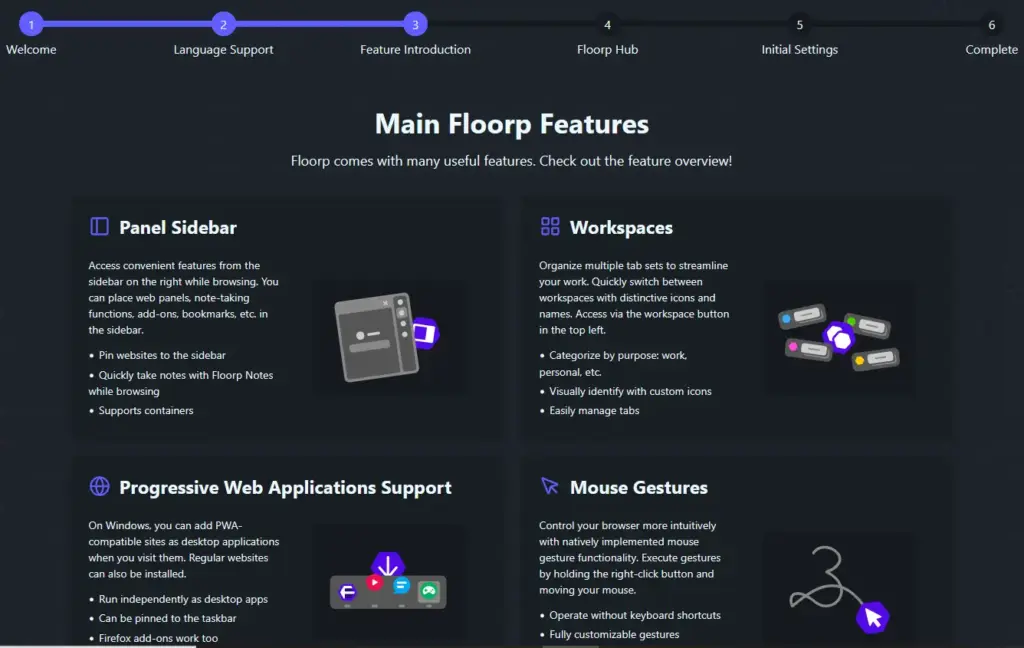
These screens provide an overview of Floorp’s key features, including Workspaces, the Panel Sidebar, support for Progressive Web Applications, and Mouse Gestures.
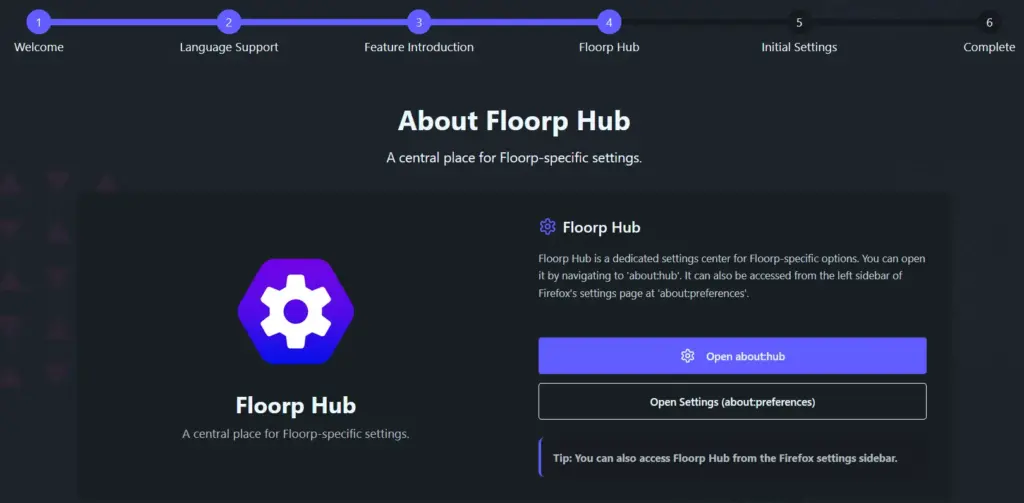
C. Floorp Hub
The Floorp Hub is a dedicated settings center for Floorp-specific options. You can access it in the following ways:
- Direct Navigation: Open a new tab and navigate directly to the internal URL: about: hub.
- Settings Sidebar: Access the Floorp Hub from the left sidebar of the standard Firefox settings page at about: preferences. Look for the “Floorp Hub” entry in the navigation panel.
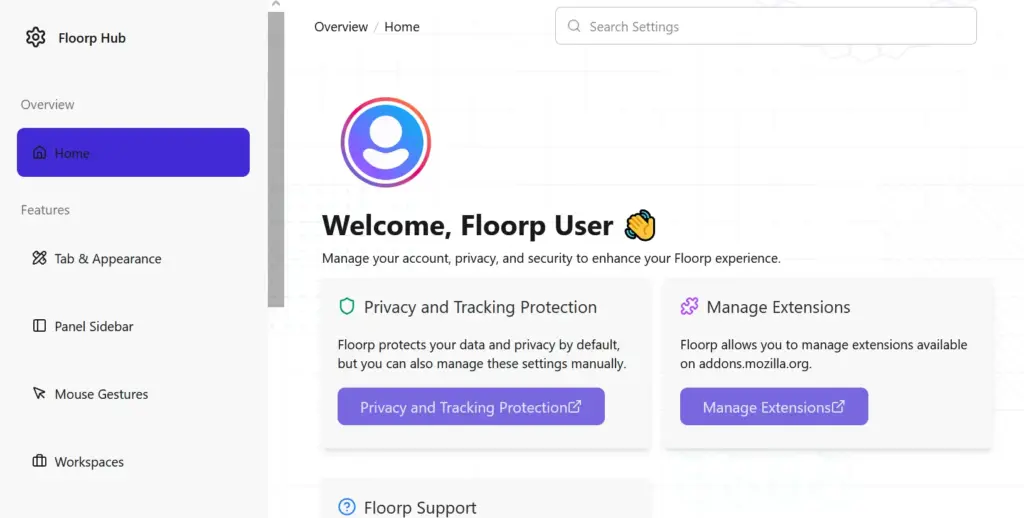
What You Can Customize Here
The Floorp Hub is where you will find the advanced configuration options.
- UI Settings: Adjusting the tab bar location (top, bottom, side), enabling vertical tabs, and changing core user interface density.
- Sidebar Tools: Configuring the productivity-focused Web Panels and Workspaces.
- Updates and Maintenance: Managing Floorp-specific updates and configuration files.
C. Initial Settings & Completion
This is the final, visual customization step.
- Choose Your Layout and Theme: You will be prompted to select your initial Appearance Settings (e.g., dark, light, or follow system settings). Choose the design that appeals most to you.
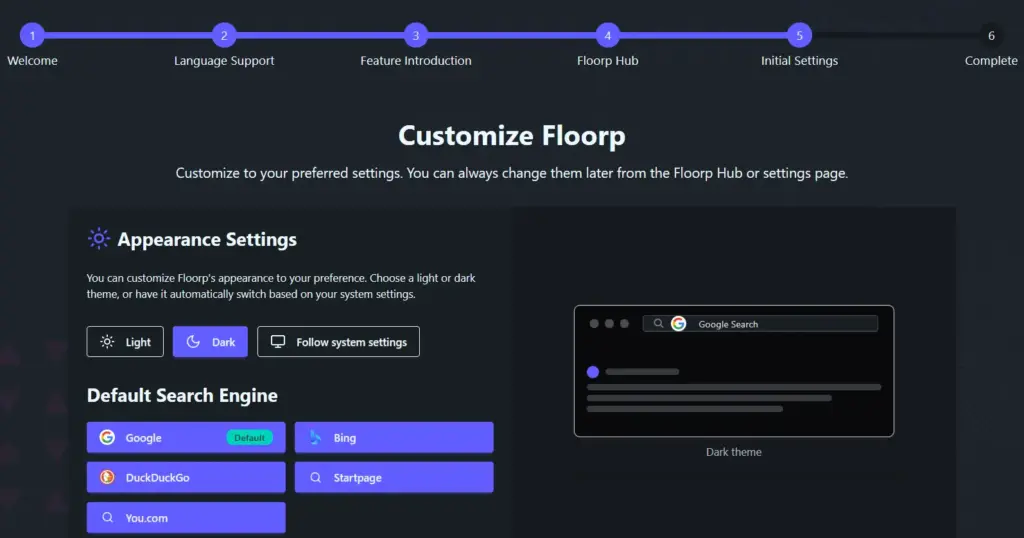
- Action: After making your final selections, click the next button
This step completes the configuration, and Floorp will open to its full browsing window, ready for immediate use.
- Setup Complete: After making your final selections, Floorp will load a prompt if you want to set it as a default browser; if not, you can get started with Floorp right away.
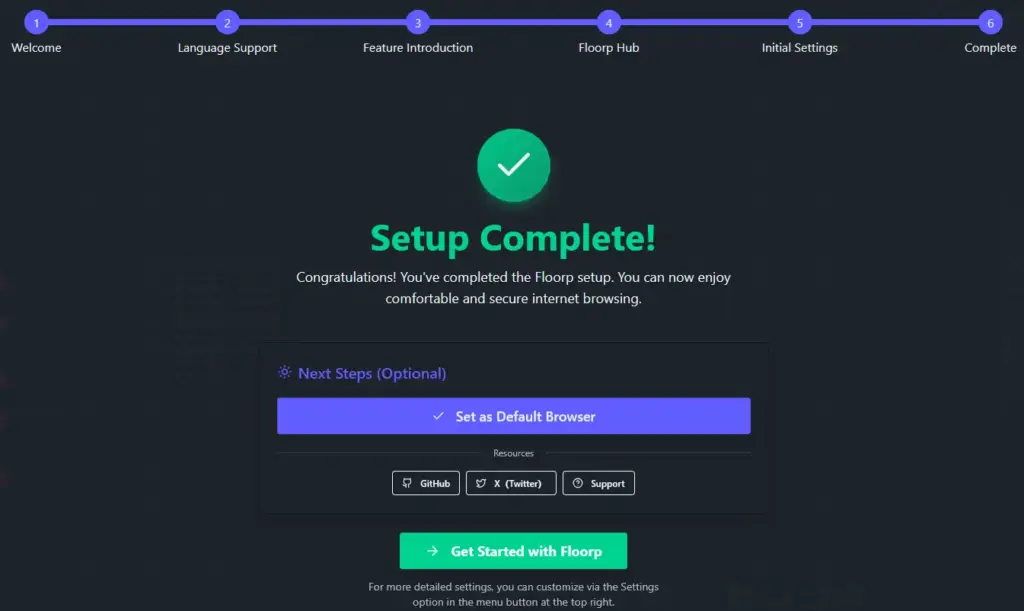
- Start Browsing: After making your final selections, Floorp will load completely, and you can begin exploring the web with your new, highly personalized, and feature-rich browser!

This final step defines your immediate user experience, showcasing Floorp’s commitment to user control and customization right from the moment of installation.
Conclusion
Installing the Floorp browser on Windows 11 is a simple process that unlocks a powerful, highly customizable browsing experience. Moreover, follow these steps to transition from a standard browsing environment to one built on the core values of performance, privacy, and personal control. Floorp gives you the freedom to move beyond one-size-fits-all designs, letting you customize everything from your tab position to your workspace management. If you value flexibility and want a browser that respects your data and boosts your productivity, you’ve made an excellent choice. Dive into the settings and start customizing—your perfect browsing experience is waiting!